Quick Summary
Summarize this article instantly with your preferred AI model.
LinkedIn Business Manager: What It Is and Who Needs It
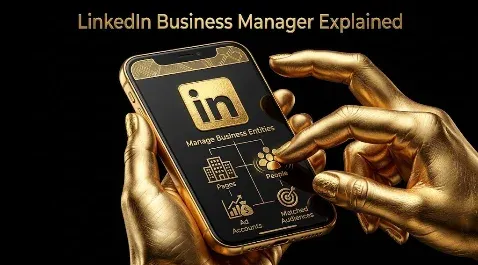
LinkedIn Business Manager: What It Is and Who Needs It
LinkedIn Business Manager is a free, single dashboard for managing all of your company’s ad accounts, Pages, people, and matched audiences, plus partnerships with outside businesses like agencies. Its point is control at the organization level: access stays with the company when an employee leaves, audiences are shared and reused instead of rebuilt, and partners get scoped access without ever owning your account. You do not need it for a single ad account run by one or two people, but the moment you have several accounts or Pages, work with an agency, or need regional and team control, it is the tool built for that. This guide covers what Business Manager holds, who needs it, the roles and permissions, how to set it up, how agencies use it, and the Revenue Attribution Report that ties spend to pipeline.
Key takeaways
- Business Manager is a free, organization-level hub for your ad accounts, Pages, people, matched audiences, and partner relationships; it holds up to 1,000 ad accounts.
- Its biggest wins are continuity (access survives staff turnover), shared audiences that update across accounts, and clean, scoped agency access.
- You do not need it for one account and a small team; you do need it for multiple assets, agency or partner work, or regional and team control.
- Access has two layers: a Business Manager member role (Admin, Employee, Contractor) plus a per-asset permission on each ad account and Page.
- Its Revenue Attribution Report connects a CRM (currently Salesforce) to track ad-influenced revenue, ROI, and pipeline, which is the number that actually matters.
What is LinkedIn Business Manager?
Business Manager is a central place to hold and manage your company’s advertising assets, separate from the individual Campaign Manager ad account and from your personal profile, which you still use to sign in. Instead of each ad account and Page living on its own with its own list of users, Business Manager links them to one dashboard where you add, remove, and update access in a single place. Crucially, the assets belong to the business, not to an individual’s personal profile, so when someone leaves, their access can be removed without losing control of the account itself. It does not disrupt what you already have: existing campaigns, billing, and data carry on, and current users keep their access when the accounts are brought in.
What does Business Manager hold?
Business Manager organizes five things in one place:
- Ad accounts, either owned by your business or requested from another business (up to 1,000).
- Pages, your company’s LinkedIn Pages, owned or requested.
- People, with Business Manager roles and per-asset permissions.
- Matched audiences, which can be shared across ad accounts, including with partners.
- Partnerships, formal links with other businesses’ Business Managers to share specific assets.
Holding all of these together is what makes access, audiences, and ownership manageable as a company grows beyond a single account.
Do you need Business Manager?
Not everyone does, so apply a simple test. You need Business Manager if any of three things is true: you manage more than one ad account or Page, you work with outside partners like an agency or clients, or you need continuity and control as people join and leave. If you run a single ad account with one or two people and no agency, Business Manager adds overhead you do not need yet, and managing access directly in Campaign Manager is simpler. Business Manager sits above Campaign Manager and works alongside it; Campaign Manager is still where you build and run the ads, while Business Manager organizes who can touch what across all your accounts.
What are the roles and permissions?
Access in Business Manager has two layers, and both matter. The first is the member role, which controls what someone can do inside Business Manager itself. The second is the per-asset permission, which controls what they can do on each specific ad account or Page.
| Layer | Options |
|---|---|
| Business Manager member role | Admin (full control: invite people, add assets, form partnerships, share audiences); Employee (view-only, assigned assets); Contractor (limited view, assigned assets) |
| Ad account permission | Full Access (campaigns, billing, users); Edit Access (manage ads, no billing or users); View Access (reports only) |
| Page permission | Admin (full control); Content Manager (create and manage posts, not settings); Viewer (insights only) |
A person’s real power is the combination: their member role plus the permission they hold on each asset. Assign the least access that lets each person do their job, and always keep more than one Admin so you are never locked out.
How do you set up Business Manager?
Setup takes about five steps and defines your whole access structure, so do it deliberately. First, go to LinkedIn’s Create a Business Manager page and sign in with your personal profile. Second, name the account, optionally add a logo, enter a business email (a shared inbox is a good idea), and choose whether you are there to “Manage my business” or “Manage my clients,” which is the agency path. Third, accept the invitation email. Fourth, set up two-step verification with a phone number or authenticator app, which Business Manager requires, and note that enabling it signs you out of all current devices. Fifth, confirm to create the profile. From there you add your ad accounts and Pages and approve the requests. Because LinkedIn updates these screens over time, confirm the current steps in LinkedIn’s help documentation as you go.
How do you add ad accounts and Pages?
Both follow the same pattern: add what you own, or request what you do not. To add an ad account, go to Ad accounts, then Add accounts, choose ownership or an access request, enter the Ad Account ID from Campaign Manager, and submit for the Account Manager or Super Admin to approve. To add a Page, go to Pages, then Add Page, choose own or request, enter the Page name or URL, and submit for the Page’s Super Admin to approve. Two practical notes: if an ad account does not appear when you try to add it as owned, you probably lack admin access to it in Campaign Manager and can only request it, and to add a Page you are not a Super Admin of, you must first invite an existing Super Admin into your Business Manager. Owned assets give you full control and the ability to share audiences; requested assets are controlled by the owner, who sets your roles and can revoke access at any time.
How do agencies and partners use Business Manager?
Partnerships are how two businesses share access without either losing ownership. Both companies need their own Business Manager, and then an admin adds the other as a partner, selects the specific ad accounts or Pages to share, and sets the roles the partner’s people may hold. The agency then grants its own staff access to those shared assets and manages its own team. The client keeps ownership throughout and can stop sharing at any time, and partners cannot reshare your assets onward to a third company. This is cleaner than adding agency staff one by one to your account, and when the engagement ends, revoking the partnership removes all of the agency’s access at once. If you are the agency, choosing “Manage my clients” at setup sets you up for exactly this.
How do audience sharing and revenue attribution work?
Two features make Business Manager more than an access tool. Shared matched audiences let you build an audience once and share it across your ad accounts, including a partner’s; the shared audience appears in the receiving account’s setup and updates automatically everywhere it is shared, so you never rebuild it. The Revenue Attribution Report, meanwhile, connects your CRM (currently Salesforce) to Business Manager so you can track revenue influenced by LinkedIn ads, ROI, and pipeline contribution. That second feature is the one worth the setup, because it moves your reporting from clicks and form fills to the number the business actually cares about, revenue, and it belongs at the Business Manager level because it spans all your accounts.
Common Business Manager mistakes
The usual mistakes are about control and timing. Adopting Business Manager for a single account and a tiny team adds complexity with little benefit. Giving everyone the Admin role removes meaningful control over who can change assets and form partnerships. Keeping only one Admin risks locking the company out if that person leaves. Requesting an account that already belongs to another Business Manager, instead of having the owner share it through a partnership, creates conflicts. And leaving former employees or finished agency partnerships with active access is a security and spend risk, which is exactly the problem Business Manager exists to prevent, so review access on a schedule.
One place to control accounts, audiences, and revenue
Here is the thread. Business Manager is not another layer of campaign tooling; it is how a company keeps control of the assets that spend its money and hold its data, and increasingly how it ties that spend to revenue. Bring your accounts and Pages under it when coordination becomes real, assign the least access each person and partner needs, share audiences instead of rebuilding them, connect your CRM for revenue attribution, and review access regularly. That operational hygiene protects your spend and keeps your user roles and campaign structure clean as you scale. If you want your LinkedIn accounts, Pages, and agency access set up cleanly under Business Manager, you can book a demo.
Frequently Asked Questions
Q1. What is LinkedIn Business Manager?
LinkedIn Business Manager is a free, organization-level dashboard for managing your company’s ad accounts, Pages, people, and matched audiences, plus partnerships with outside businesses. It separates asset ownership from individual profiles, so access stays with the company when employees leave, and it lets you manage access and share audiences across many accounts, up to 1,000, in one place instead of account by account.
Q2. Who needs LinkedIn Business Manager?
Companies that manage more than one ad account or Page, work with agencies or partners, or need continuity and control as people come and go. A single ad account run by one or two people with no agency does not need it, and can manage access directly in Campaign Manager. Adopt Business Manager when the coordination problem is real, since it has a learning curve.
Q3. Is LinkedIn Business Manager free?
Yes. Business Manager itself is free to set up and use; it is an access and management layer, not a paid product. You still pay for the advertising that runs through the ad accounts it holds, billed as normal. Bringing accounts into Business Manager does not change their billing, existing campaigns, or data, and current users keep their access.
Q4. What are the roles in LinkedIn Business Manager?
Access has two layers. The member role controls Business Manager itself: Admin (full control), Employee (view assigned assets), and Contractor (limited view). The per-asset permission controls each ad account (Full, Edit, or View access) and each Page (Admin, Content Manager, or Viewer). A person’s real permissions are the combination of their member role and their permission on each asset.
Q5. How do you set up LinkedIn Business Manager?
Go to LinkedIn’s Create a Business Manager page, sign in, name the account, add a business email, and choose “Manage my business” or “Manage my clients.” Accept the invitation, set up the required two-step verification, and confirm to create the profile. Then add your ad accounts and Pages and approve the requests. Confirm current steps in LinkedIn’s help documentation, as interfaces change.
Q6. What is the difference between an owned and a requested ad account?
An owned account is one your business holds and controls fully, including the ability to share its audiences. A requested account is owned by another company, which sets the roles you can use and can revoke your access at any time, and you cannot share its audiences onward. If an account does not appear when you try to add it as owned, you likely lack admin access in Campaign Manager and can only request it.
Q7. How do agencies get access through Business Manager?
Through a partnership. Both the agency and the client need a Business Manager, then an admin adds the other as a partner, shares specific ad accounts or Pages, and sets the roles the partner may assign. The agency grants its own staff access to the shared assets. The client keeps ownership, can stop sharing anytime, and partners cannot reshare assets onward. Agencies choose “Manage my clients” at setup.
Q8. What is the LinkedIn Revenue Attribution Report?
It is a Business Manager report that connects your CRM, currently Salesforce, to LinkedIn so you can see the revenue, ROI, and pipeline your ads influenced, rather than just clicks and conversions. Because it spans all the ad accounts in your Business Manager, it lives at that level. It is one of the strongest reasons to use Business Manager, since it ties ad spend to the pipeline the business actually cares about.
More Featured Blogs
View All Blogs
Why LinkedIn Ads and Google Analytics Numbers Never Match



LinkedIn Ad Character Limits: The Reference for Every Format

LinkedIn Conversions API: What It Is and How to Set It Up