Quick Summary
Summarize this article instantly with your preferred AI model.
LinkedIn Ads and HubSpot: How to Connect Them and Why
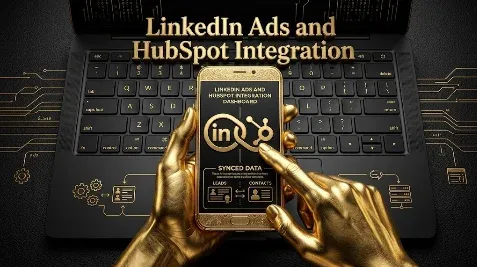
LinkedIn Ads and HubSpot: How to Connect Them and Why
Connecting LinkedIn Ads to HubSpot closes the loop between the ad click and the closed deal: lead gen form submissions flow into HubSpot as contacts automatically, HubSpot lists push back to LinkedIn as matched audiences, and you can send conversion events like SQLs and closed-won deals back to LinkedIn so campaigns optimize for revenue rather than clicks. That matters because a lead stuck inside Campaign Manager is a lead you cannot follow to revenue, and a LinkedIn conversion only means something once you can see whether it became an MQL, an opportunity, and a closed deal in your CRM. The integration is native and mostly a one-time setup. This guide covers what it syncs, how to connect it, how lead sync and field mapping work, how to feed conversions back, and how to use it to track LinkedIn leads to pipeline.
Key takeaways
- The native integration syncs LinkedIn lead gen form submissions into HubSpot as contacts automatically, so leads land in your CRM instead of a CSV export.
- It is a full loop: leads flow into HubSpot, HubSpot lists flow back as matched audiences, and conversion events like SQLs and closed-won deals flow back to LinkedIn.
- Sending real conversions back lets LinkedIn optimize for business outcomes, not just clicks, which is the biggest reason to connect the two.
- You generally need Marketing Hub Professional or Enterprise for audience and conversion sync, plus admin access on both sides and a LinkedIn ad account.
- Create HubSpot properties for any custom lead gen form questions before you sync, or that data is lost on the way in.
Why connect LinkedIn Ads to HubSpot?
Because the click is not the point, the pipeline is. Left unconnected, a LinkedIn lead gen form fills up inside Campaign Manager, someone exports a CSV, and the lead reaches sales late and without context, if at all. Connected, the same lead lands in HubSpot the moment it is submitted, enters your workflows, and can be followed all the way to revenue, which is the only number that proves the campaign worked. The integration also runs the other way: the audiences you have built in HubSpot can target or exclude on LinkedIn, and the conversions you record in HubSpot can be sent back so LinkedIn learns which leads actually became pipeline. So it is not just lead plumbing; it is how you keep LinkedIn pointed at the right people and optimizing toward revenue.
What does the integration sync?
The value is in the full loop: leads and data come in, audiences and conversions go out.
| Direction | What syncs | Why it matters |
|---|---|---|
| LinkedIn to HubSpot | Lead gen form submissions become contacts | Leads reach sales instantly, with consent data |
| LinkedIn to HubSpot | Ad performance and revenue attribution | See which campaigns drove contacts, deals, and revenue |
| HubSpot to LinkedIn | Contact-list and website audiences | Target best-fit segments by lifecycle, size, title, industry, or deal value |
| HubSpot to LinkedIn | Customer list as an exclusion | Stop spending on people who already bought |
| HubSpot to LinkedIn | Conversion events (SQL, closed-won) | LinkedIn optimizes toward revenue, not just clicks |
Leads coming in is the headline, but the conversions and audiences going out are what quietly improve results, because telling LinkedIn which leads became revenue is how its optimization learns to find more of them.
What do you need to connect them?
A HubSpot plan with the ads features, admin access on both sides, and a LinkedIn ad account. In practice the audience sync and conversion-event sync need Marketing Hub Professional or Enterprise, so confirm what your plan includes before you rely on those, since lighter plans may only cover basic lead sync. You also need admin rights in HubSpot and on your LinkedIn ad account and Page, and a LinkedIn Campaign Manager account where your ads and lead gen forms live. With those in place, the connection is a one-time authorization that then runs in the background, so this is setup you do once rather than maintain daily.
How do you connect LinkedIn Ads to HubSpot?
The native connection takes a few minutes.
- In HubSpot, go to Settings, then Integrations, then Connected Apps (or Marketing, then Ads).
- Click Connect an app or Connect account, search for LinkedIn, and choose LinkedIn Ads.
- Sign in to LinkedIn and grant HubSpot the requested permissions.
- Turn on lead syncing for your LinkedIn ad account or Page.
- Map each lead gen form field to the correct HubSpot property, and confirm the mapping before relying on it.
- Install HubSpot’s tracking code so conversion events and website audiences can flow.
Once authorized, HubSpot pulls your LinkedIn campaigns, metrics, and leads automatically. Exact menu labels change as HubSpot updates its interface, so if a path differs, look under Marketing, then Ads.
How does lead gen form sync and field mapping work?
This is where the one avoidable mistake lives. When someone submits a LinkedIn lead gen form, the integration creates or updates a HubSpot contact with their details and consent data, so the lead is in your CRM without a manual export. The form itself is built in Campaign Manager, not in HubSpot, and it must be active and linked to the right campaign for leads to flow. The catch is field mapping: standard fields like first name and email map cleanly, but any custom question on your form needs a matching HubSpot property, and you must create that property before you turn on syncing. If you do not, the answers to your custom questions have nowhere to land and are lost on the way in, which you only notice later when the data you wanted is missing. So the order matters: build your custom properties first, map every form field, then switch syncing on.
The two-way loop: leads in, audiences and conversions out
The mental model that makes the integration pay off is a loop. Leads flow in: every lead gen form submission becomes a HubSpot contact you can score, route, and follow to revenue. Signals flow out, in two forms. First, audiences: HubSpot lists sync to LinkedIn as matched audiences, segmented by lifecycle stage, company size, job title, industry, or deal value, and updated automatically as contacts move through the funnel, while your customer list syncs as an exclusion. Second, conversions: you send events like SQL and closed-won back to LinkedIn, so its optimization chases the leads that become revenue instead of the cheapest form fills. That conversion feedback is the part most teams skip and the part that matters most, because it is how LinkedIn’s algorithm learns what a good lead looks like for your business.
How do you see LinkedIn ROI in HubSpot?
Once connected, your LinkedIn performance sits alongside your other channels. Under Marketing, then Ads, you can select your LinkedIn account and review performance, and HubSpot can track and attribute ads even when they were created outside HubSpot, so you see which campaigns drove contacts, deals, and revenue. The real payoff is attribution: because the leads are now HubSpot contacts, you can follow them to MQL, opportunity, and closed-won, which connects LinkedIn spend to revenue rather than to platform conversions, and surfaces it in HubSpot Analytics and dashboards. Tie your campaigns together with consistent UTM parameters as well, so traffic that does not come through a lead form still attributes to LinkedIn.
Common integration issues and mistakes
Some problems are setup mistakes, others are known quirks of the integration. The avoidable mistakes: turning on sync before creating HubSpot properties for custom form questions, so that data is lost; expecting audience or conversion sync on a plan that does not include it; and forgetting to sync a customer-exclusion list, so you keep paying to reach existing customers. The known issues, reported by users, are worth planning around too: the connection can drop and need reauthorizing, lead sync can lag rather than being instant, and not every ad format or action is supported. None of these is a dealbreaker, but check the connection periodically, confirm leads are flowing after you launch a new form, and do not assume the sync is real-time.
Close the loop: track leads to pipeline
Here is the thread. A LinkedIn lead is only worth what it becomes, and you cannot see what it becomes until it is in your CRM, so connecting LinkedIn Ads to HubSpot is less an integration than the step that makes your measurement real. Sync the leads in so sales gets them fast and you can follow them to revenue, push your audiences out so LinkedIn targets the right accounts and skips your customers, and send conversions back so the algorithm optimizes toward pipeline, pairing it with your conversion tracking and retargeting so the whole funnel is visible. Then judge LinkedIn on the pipeline HubSpot confirms, not the conversions Campaign Manager claims. If you want your LinkedIn and HubSpot set up for closed-loop tracking to pipeline, you can book a demo.
Frequently Asked Questions
Q1. How do you connect LinkedIn Ads to HubSpot?
In HubSpot, go to Settings, then Integrations, then Connected Apps (or Marketing, then Ads), click Connect an app, search for LinkedIn, and choose LinkedIn Ads. Sign in to LinkedIn, grant permissions, turn on lead syncing, and map each lead gen form field to a HubSpot property. Install HubSpot’s tracking code so conversions and audiences can flow. It is a one-time authorization that then runs in the background.
Q2. Do LinkedIn lead gen forms sync to HubSpot automatically?
Yes, once the integration is connected and lead syncing is on. A LinkedIn lead gen form submission creates or updates a HubSpot contact with the person’s details and consent data, so the lead lands in your CRM without a manual CSV export. The form is built in Campaign Manager, not HubSpot, and must be active and linked to the right campaign for leads to flow.
Q3. What HubSpot plan do you need for the LinkedIn Ads integration?
You need a HubSpot plan with the ads features and a LinkedIn ad account. In practice, the audience sync and conversion-event sync need Marketing Hub Professional or Enterprise, so confirm what your plan includes, since lighter plans may only cover basic lead sync. You also need admin access in HubSpot and on your LinkedIn ad account and Page.
Q4. Can you send conversions from HubSpot back to LinkedIn?
Yes, and it is the most valuable part. You can send conversion events such as SQLs and closed-won deals from HubSpot back to LinkedIn, so its optimization learns which leads became real pipeline and chases more of them, rather than optimizing toward the cheapest clicks or form fills. This conversion feedback is what turns the integration from lead plumbing into a revenue loop.
Q5. Can you sync HubSpot lists to LinkedIn as audiences?
Yes. HubSpot contact lists sync to LinkedIn as matched audiences, segmented by lifecycle stage, company size, job title, industry, or deal value, and they update automatically as contacts move through the funnel. You can also sync a customer list as an exclusion so you stop spending to reach people who already bought, and build website-visitor audiences through HubSpot’s tracking code.
Q6. Why are my LinkedIn leads not syncing to HubSpot?
Usually the form is not active or not linked to the right campaign, the field mapping is wrong, or the connection needs reauthorizing. Check that the lead gen form is live and attached to a running campaign, confirm each field maps to a HubSpot property, and if needed reconnect LinkedIn in HubSpot. Note that sync can lag rather than being instant, so allow a little time before assuming it has failed.
Q7. Do custom lead gen form questions sync to HubSpot?
Only if you prepare for them. Standard fields like name and email map cleanly, but each custom question needs a matching HubSpot property, and you must create that property before turning on syncing. If you do not, the answers have nowhere to land and are lost on the way in. Build the custom properties first, map every field, then enable sync.
Q8. Should you use the native integration or a tool like Zapier?
Use the native integration for the core flows: lead sync, audience sync, conversion-event sync, and ad reporting. It is built in and covers what most teams need. Reach for a tool like Zapier only for edge cases the native integration does not handle, such as routing leads into another system or custom rule-based workflows, since each added tool is one more thing to maintain and debug.
More Featured Blogs
View All Blogs
LinkedIn Company Engagement Report: Measure ABM by Account



LinkedIn Accelerate Campaigns: How the AI Builds Your Ads
LinkedIn CTV Ads: Connected TV for B2B, Explained