Quick Summary
Summarize this article instantly with your preferred AI model.
How to Use the LinkedIn Ad Library for Competitor Research
How to Use the LinkedIn Ad Library for Competitor Research
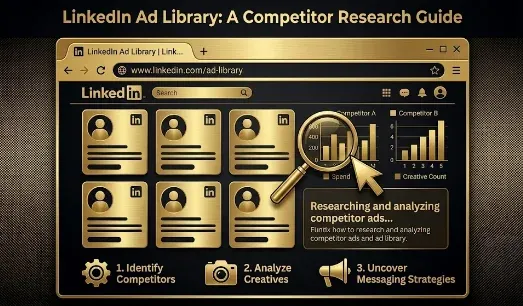
The LinkedIn Ad Library is a free, no-login tool at linkedin.com/ad-library that shows every ad a company has run on LinkedIn in the past year. You can search by company, pull up a competitor’s exact creative and copy, and study their formats without spending anything or revealing that you looked. The one thing it will not show you is performance: it tells you what ran, not what worked. This guide covers how to search it, what it exposes, what it hides, the five things to actually analyze, and the third-party tools that extend it, so competitor research changes your campaigns instead of just filling a folder of screenshots.
Key takeaways
- The LinkedIn Ad Library is free and needs no login or ad account. It covers ads served since June 1, 2023 and keeps each ad for one year after its last impression.
- Search by company name, payer name, or keyword, and filter by country and date. New ads appear within roughly 24 to 48 hours of going live.
- It shows creative, copy, format, and the advertiser. In the EU it also shows impression ranges and targeting, but it never shows spend, clicks, or conversions.
- Analyze five things: format mix, messaging and positioning, pain points and offers, the CTA and landing journey, and the role-pain-promise ladder they repeat.
- Separate what you observe from what you infer. A long-running ad is a likely winner, not a proven one, because the performance data is hidden.
What is the LinkedIn Ad Library?
The LinkedIn Ad Library is a public transparency tool that lists the ads run by any advertiser on the platform. LinkedIn launched it on June 1, 2023, and it now holds every ad served since that date, retained for one year after the ad’s last impression. You reach it directly at linkedin.com/ad-library, or from the Posts tab of any company Page under the Ads section. No login, no Campaign Manager access, and no cost are required, which means you can research any competitor and they have no way of knowing you did.
Because ads appear within roughly 24 to 48 hours of launch, the library is close to a live feed of what your category is testing right now. That makes it useful for two jobs at once: a one-time teardown of a rival’s whole approach, and ongoing monitoring of what they launch next.
How to search the LinkedIn Ad Library
The native library is a search box, not a dashboard, so knowing the search paths matters.
- Go to linkedin.com/ad-library. No login is needed.
- Search by company name to see everything one advertiser is running. This is the fastest way to profile a single competitor.
- Search by keyword to see who is bidding on a theme, category, or pain point, which surfaces rivals you had not thought to check.
- Search by payer name (the entity that paid for the ad) to catch ads run across sub-brands or by an agency on a client’s behalf.
- Filter by country and by date range to narrow to a specific market or a specific launch window.
- Click an ad to open View details: the creative, the full copy, the advertiser and their Page, the date range the ad has run, and, for EU-targeted ads, impression ranges and targeting parameters.
To see one company’s complete active set in one place, open their LinkedIn Page, click the Posts tab, and select Ads.
What the LinkedIn Ad Library shows and hides
This is the single most important thing to understand before you rely on it. The library is a creative archive, not an analytics tool. It shows you the ad as the market saw it, and nothing about the results.
| What you can see | What you cannot see |
|---|---|
| Every ad creative and its full copy | Engagement (reactions, comments, shares) |
| The ad format (single image, video, carousel, document, text) | Click-through rate or number of clicks |
| The advertiser and the payer behind the ad | Conversions, leads, or pipeline |
| The date range the ad has been running | Budget or spend |
| In the EU: impression ranges and targeting parameters | Whether the ad was actually profitable |
The EU exception is worth knowing. Under the Digital Services Act, ads shown to EU audiences carry extra disclosure: an approximate impression range and the targeting criteria (locations, audience parameters) the advertiser used. If a competitor runs in Europe, you can infer far more about their audience strategy than you can from a US-only advertiser.
The 5-point competitor ad teardown
A folder of competitor screenshots is worthless on its own. Run every advertiser you research through these five lenses so the output is a decision, not a scrapbook.
1. Format mix
Note which formats a competitor leans on and in what proportion. A brand running mostly document ads is chasing lead capture; one running mostly video is buying reach and recall. A sudden shift in format mix signals they found something that works, or that something stopped working.
2. Messaging and positioning
Read the copy across all their live ads and find the one promise they repeat. That repeated line is their core positioning, the thing they have decided to be known for. Note the category language they use, because that is the frame they are trying to win.
3. Pain points and offers
List every problem their ads name and every offer they attach to it (demo, guide, webinar, free trial, assessment). The offers reveal funnel stage: a competitor heavy on gated guides is filling the top of the funnel; one pushing demos is harvesting existing demand.
4. CTA and landing journey
Note the button they use and, more importantly, where the click goes. Click through to the landing page and study the offer, the form length, and whether the promise carries over from ad to page. The gap between a strong ad and a weak landing page is a competitor weakness you can exploit.
5. The role-pain-promise ladder
The most useful pattern sits across ads, not in any single one. Map how a competitor pairs a job role to a pain to a promise across their set. When you see the same ladder repeated for different audiences, you have found the segmentation logic behind their whole account, which is far more valuable than any one creative.
One rule keeps this honest: write down what you can see (format, copy, offer, run dates) separately from what you infer (audience, strategy, results). The library gives you facts about creative and guesses about everything else, and mixing the two is how teams talk themselves into copying a competitor’s mistakes.
Third-party tools that extend the Ad Library
The native library is a browser and nothing more: no alerts, no saved searches, no export. Two categories of tool close those gaps.
Monitors and aggregators (for example Superads, Apify-based scrapers, and dedicated ad-library search tools) let you track advertisers over time, get alerted to new ads, and export sets for analysis instead of checking manually. Organizers (Notion, Trello, or a simple Google Drive folder) turn scattered screenshots into a searchable swipe file, tagged by the five lenses above.
Use a monitor to catch change and an organizer to make the change mean something. Neither adds performance data, so the “what ran, not what worked” limit still applies to everything they surface.
How to turn ad research into a monthly habit
One-off snooping tells you little. Competitive advantage comes from watching change over time, on a cadence: a quick weekly scan of your top rivals for anything new, a proper monthly teardown against the five lenses, and a quarterly review of the pattern. Log what is new, what disappeared, and what has run unchanged for months. An ad that has been live for six months is almost certainly a winner they keep funding; a burst of new creative that vanishes in two weeks was a test that failed.
Over a quarter, the ads your category keeps funding show you where the proven demand is, and the themes nobody is running reveal the creative gap you can own. If you want that teardown run on your competitors and turned into a concrete test plan, you can book a demo.
Why “what ran” is not “what worked”
Here is the trap that makes ad-library research backfire. Because the library shows no performance data, a long-running ad looks like proof of success and a slick creative looks like a template to copy. Neither assumption is safe. You cannot see whether that six-month ad is generating pipeline or just burning a budget nobody is auditing, and you certainly cannot see cost per qualified lead or downstream conversion.
Use the library to understand the market’s positioning, offers, and creative conventions, then decide with your own data. Copying a competitor’s ad copies their unknowns along with it: their targeting, their offer economics, and their mistakes. The right use is to inform your hypotheses, not to replace your testing. What a competitor ran is a starting point for what you should test, never a substitute for measuring what actually works for you.
Frequently Asked Questions
Q1. Is the LinkedIn Ad Library free to use?
Yes. The LinkedIn Ad Library is completely free and requires no login, no ad account, and no Campaign Manager access. Anyone can visit linkedin.com/ad-library and search any advertiser or keyword. Because access is anonymous, competitors have no way of knowing you have viewed their ads.
Q2. Do you need a LinkedIn account to use the Ad Library?
No. The Ad Library is a public transparency tool, so you can browse it without logging in or even having a LinkedIn account. You reach it directly at linkedin.com/ad-library or through the Ads section of any company Page, which makes it usable for research from any browser.
Q3. How far back does the LinkedIn Ad Library go?
The library covers ads served since June 1, 2023, when LinkedIn launched it. Each ad is retained for one year after its last impression, so you can see roughly the past 12 months of any active advertiser’s creative. Ads that stopped running more than a year ago drop out of the archive.
Q4. Can you see a competitor’s ad spend or performance in the Ad Library?
No. The library shows creative, copy, format, and run dates, but no spend, clicks, click-through rate, engagement, or conversions. It tells you what a competitor ran, not what worked or what it cost. Treat a long-running ad as a likely winner, but never as proven, because the results are hidden.
Q5. How do you find a specific company’s ads in the library?
Search the company’s name at linkedin.com/ad-library, or open their LinkedIn Page, click the Posts tab, and select Ads. Either route lists every ad that advertiser has run in the past year. You can also search by payer name to catch ads run across sub-brands or by an agency.
Q6. Can you see who a competitor is targeting on LinkedIn?
Only partly, and only in the EU. For ads shown to EU audiences, the Digital Services Act requires LinkedIn to disclose approximate impression ranges and targeting parameters such as location and audience criteria. For US and other non-EU advertisers, targeting is not shown, so you infer audience from the copy and the roles it addresses.
Q7. Are there third-party tools to track LinkedIn ads over time?
Yes. The native library has no alerts or export, so marketers use monitors and aggregators (such as Superads or Apify-based scrapers) to track advertisers and catch new ads, plus organizers like Notion or Trello to build a searchable swipe file. None of these add performance data; they only make the free library easier to work with at scale.
Q8. How is the LinkedIn Ad Library different from the Meta Ad Library?
Both are free transparency tools showing ads a company has run, but they cover different platforms and audiences. LinkedIn’s suits B2B research because its advertisers and buyers are professional and role-based, and its EU disclosures add targeting detail. Neither shows spend or performance, so both answer what ran, not what worked.
More Featured Blogs
View All Blogs
LinkedIn Carousel Ads: What the Specs and Data Say


The 95/5 Rule for LinkedIn Ads

LinkedIn Thought Leader Ads for B2B SaaS